Eclipse IDE for Java Developers: Complete Beginner’s Guide



Introduction
Starting out in software engineering can feel like entering a new world with its own language. Choosing Java is a practical step since it is secure, reliable, and widely used across enterprise systems, mobile apps, and cloud platforms. Learning Java is not only about the code itself but also about the environment where you write it. That is where Integrated Development Environments (IDEs) come in, helping to make the process easier and more organised. If you are new to Java, you have likely encountered the common beginner question: “Which IDE should I use?” One name consistently stands out, Eclipse.
Eclipse IDE has been a trusted option for over twenty years. Free, customisable, and widely recommended, it is often the first choice for beginners. Opening Eclipse can feel complex at first, but this guide is designed to simplify the experience. You will learn how Eclipse works, how to write and run your first Java program, and how to handle errors with confidence.
This guide is written for anyone beginning their Java journey, students, career changers, bootcamp learners, and professionals exploring Java for the first time.
What Is Eclipse IDE for Java Developers?
Eclipse is an open-source Integrated Development Environment, or IDE. An IDE bundles everything a developer needs into one place: a code editor, a compiler, a debugger, a file explorer, and a console for viewing output.
Instead of writing code in a plain text editor, compiling from the command line, and running it in a separate terminal, an IDE lets you do all of this from a single interface. That is the core value of Eclipse, it removes the friction between writing code and seeing it work.
Eclipse was originally created by IBM and released to the open-source community in 2001. Today it is maintained by the Eclipse Foundation and is completely free to download and use, which is one reason it remains popular in educational settings and enterprise organisations alike.
Eclipse vs a text editor
A text editor like VS Code or Notepad++ lets you write code. An IDE like Eclipse lets you write, organize, compile, run, and debug code, all without leaving the application. For Java beginners, that combination is genuinely useful.
Why Eclipse Is Commonly Used for Java Programming
Eclipse IDE has remained a dominant choice for Java developers for more than twenty years. Its staying power comes from a combination of accessibility, deep integration, and real‑world relevance.
- Free and Open Source - Unlike many professional tools that require subscriptions, Eclipse is completely free, making it easy for students, hobbyists, and professional teams to adopt without worrying about licensing costs.
- Deep Java Integration - Eclipse was designed with Java at its core. It understands the language’s syntax and conventions, highlights errors as you type, and offers intelligent suggestions. Features like Quick Fix can even repair common mistakes automatically.
- Massive Plugin Ecosystem - Eclipse’s plugin-based architecture allows you to tailor the IDE to your needs. The Eclipse Marketplace offers thousands of extensions from web development and database tools to version control systems like Git.
- Strong Community and Documentation - With decades of use, Eclipse has a huge global community. Tutorials, Stack Overflow threads, YouTube guides, and official documentation are widely available.
- Real-World Adoption - Many enterprises, universities, and training programmes standardise on Eclipse, giving you skills that transfer directly into professional environments.
- Cross-Platform Support - Eclipse runs smoothly on Windows, macOS, and Linux.
- Integration with Build Tools - It works seamlessly with Maven and Gradle, helping developers manage dependencies and automate builds.
What Makes Eclipse Useful for Beginners and Professionals
Whether you are just starting out with Java or already working on complex projects, the tools you use can make a big difference. Eclipse IDE has features that support both ends of the spectrum. Beginners benefit from its guidance and ease of use, while professionals rely on its advanced capabilities to manage large‑scale applications. This balance is what makes Eclipse such a versatile and enduring choice in the developer community.
For Beginners: Starting to code can feel overwhelming, but Eclipse IDE reduces friction in several important ways -
- Instant Error Feedback: Mistakes are flagged immediately with red underlines, much like spell-check in a word processor.
- Code Completion: Eclipse suggests classes, methods, and variables as you type, helping beginners learn the language’s structure.
- Built‑in Console: Program output appears directly inside Eclipse, eliminating the need to switch between windows.
- Visual Project Structure: The Package Explorer displays files in a clear tree view for easy navigation.
- Learning Resources: Abundant tutorials and community support are available given Eclipse’s widespread use.
For Professionals: Advanced developers rely on Eclipse’s more powerful features to manage complex projects efficiently -
- Refactoring Tools: Rename variables across entire projects, extract methods, or restructure classes safely.
- Integrated Debugger: Set breakpoints, inspect variables in real time, and step through code line by line.
- Version Control Integration: Work seamlessly with Git, SVN, and other systems directly within the IDE.
- Build Tool Support: Native support for Maven and Gradle makes dependency management straightforward.
- Cross-Language Plugins: Eclipse can be extended to support Python, C++, and JavaScript for multi-stack projects.
The Role of the JDK in Java Development
Before you can start writing or running any Java program, whether in Eclipse IDE or another tool, you’ll need the Java Development Kit (JDK). Think of Eclipse as the cockpit where you control everything, and the JDK as the engine that makes the whole system run.
The JDK comes with three key parts that work together:
- Java Compiler (javac) - Turns the code you write into bytecode, which the computer can execute.
- Java Runtime Environment (JRE) - Runs your compiled programs. It includes the Java Virtual Machine (JVM), which makes Java programs work across different operating systems.
- Standard Libraries - A large collection of ready-made classes and methods for everyday tasks like handling files, doing calculations, and connecting to networks.
Important to Know
Install the JDK before Eclipse. Without it, Eclipse cannot compile or run your code. For most learners, the latest Long-Term Support (LTS) version, such as JDK 21, is the best choice.
The Difference Between an IDE, JDK, JRE, Compiler, Workspace, Project, Package, Class, Method, Console, and Debugger
Beginners often encounter these terms in quick succession and assume they refer to the same thing, or use them interchangeably. They do not. Each one describes a distinct concept, and understanding how they differ from one another is one of the most important steps you can take before writing a single line of Java.
The Tool Layer: IDE, Compiler, Debugger, and Console
These four terms all describe things you interact with directly as a developer, but they serve different purposes and operate at different points in the development process.
- An IDE is the application you open when you sit down to code, the window on your screen. Eclipse bundles multiple tools together so you can write, compile, run, and debug code without leaving the same application. On its own, an IDE cannot run Java; it depends on the JDK.
- A compiler translates the Java code you write into a form the computer can execute. Java source files have a .java extension; the compiler produces .class files containing bytecode. In Eclipse, compilation happens automatically each time you save. The compiler is part of the JDK, not Eclipse itself.
- The debugger works while your program is running. It lets you pause execution, inspect variable values, and step forward one line at a time. The compiler catches syntax errors; the debugger helps you find logic errors.
- The console is a view inside Eclipse that displays text output from your running program. When your code calls System.out.println(), the result appears in the console. It is passive, it only shows what your program produces.
The Java Platform Layer: JDK, JRE, and Compiler
The JDK and JRE are frequently confused because one contains the other, and their names sound similar. The distinction comes down to what you are doing: building software or running it.
- The JRE (Java Runtime Environment) is what you need to run a Java program that has already been compiled. It contains the JVM and standard libraries but cannot compile code.
- The JDK (Java Development Kit) is everything in the JRE plus the compiler and development tools. The JRE is for users; the JDK is for developers. Installing the JDK gives you everything needed to both build and run Java programs.
The Organisation Layer: Workspace, Project, Package, Class, and Method
A workspace is the outermost container, a folder Eclipse uses to store projects and preferences. A project sits inside a workspace and represents one complete program. A package is a named folder inside a project that groups related classes. A class is the fundamental unit of Java code, stored in its own .java file. A method is a block of code inside a class that performs a specific task, the most important being main(), the entry point for the JVM.
The hierarchy from largest to smallest: workspace → project → package → class → method.
How the Eclipse Workspace Works
When you launch Eclipse for the first time, it asks you to choose a workspace, a folder where Eclipse stores your projects and settings.
You can have multiple workspaces, for example one for coursework and one for professional work. Switching is easy through File > Switch Workspace, and each workspace keeps its own independent settings.
Workspace Best Practices:
- Choose a simple path - Use a short, clear location such as C:\eclipse-workspace on Windows. Avoid deeply nested directories, as they can slow down indexing.
- Avoid spaces or special characters - These can cause issues with build tools like Maven or Gradle.
- Keep it organised - Group related projects and use perspectives (Java, Debug, Web) to keep your workspace focused.
- Do not move folders manually - Use Eclipse’s built-in import/export features to relocate projects safely.
- Remember settings are workspace-specific - Preferences like font size, compiler options, and plugins are saved per workspace.
How Java Projects Are Organized Inside Eclipse
Every project has two main folders: src, where you write and store all .java files, and bin, managed by Eclipse, holding the compiled .class bytecode.
- Working in src: All coding happens inside src. Always create new files using Eclipse’s New menu to ensure proper setup and automatic linking to the build path.
- bin Folder: Eclipse compiles your code in the background and places output in bin. You do not edit files here directly.
- Packages: Code inside src is organised into packages, named subfolders. For example, com.myapp.utils maps to src/com/myapp/utils. Packages enforce modularity and prevent naming conflicts.
- Package Explorer: The left-side panel shows your project visually. It makes the four-level hierarchy clear, Project → Package → Class → Method helping beginners understand how code fits together.
Step‑by‑Step Guide: Creating and Running Your First Java Project
Getting hands‑on is the best way to understand how Eclipse works. A Java project in Eclipse follows a predictable hierarchy, Project → Package → Class → Method and the IDE provides tools to create, organise, and run your code seamlessly. This guide walks you through building a simple “Hello World” program from scratch and explains what happens when you run it.
.png)
Step 1: Create a New Java Project
- Go to File > New > Java Project.
- Enter a project name, e.g. HelloWorld.
- Ensure the JDK is selected under Use an execution environment JRE.
- Click Finish. Eclipse sets up the project and displays it in the Package Explorer.
Step 2: Create a Package
- Right‑click the src folder → New > Package.
- Name it something like com.beginner.hello.
- Packages keep code modular and prevent naming conflicts.
Step 3: Create a Class
- Right‑click the package → New > Class.
- Name the class HelloWorld.
- Tick the box to generate the main() method automatically.
- Click Finish. Eclipse opens the new file in the editor.
Step 4: Write the Code
Your file should look like this:
package com.beginner.hello;
public class HelloWorld {
public static void main(String[] args) {
System.out.println("Hello, World!");
}
}
The line System.out.println("Hello, World!"); tells Java to print the text Hello, World! to the console. This simple statement is part of the classic “Hello World” program, which demonstrates the core structure of every Java application: a class, a main() method, and at least one executable statement.
Step 5: Write the Code
- Save the file (Ctrl+S or Cmd+S).
- Click the green Run button, or press Ctrl+F11 / Cmd+F11.
- Choose Java Application if prompted.
- Look at the Console panel you should see:
Hello, World!
How Debugging Works
Imagine you have written a program that is supposed to calculate the average of five numbers, but it is giving you the wrong answer. The code runs without errors, but the result is incorrect. This is called a logic bug, and it is where the debugger becomes your best friend.
Debugging is the process of pausing your program mid-execution, inspecting the state of every variable, and stepping through the code line by line until you find the exact moment things go wrong.
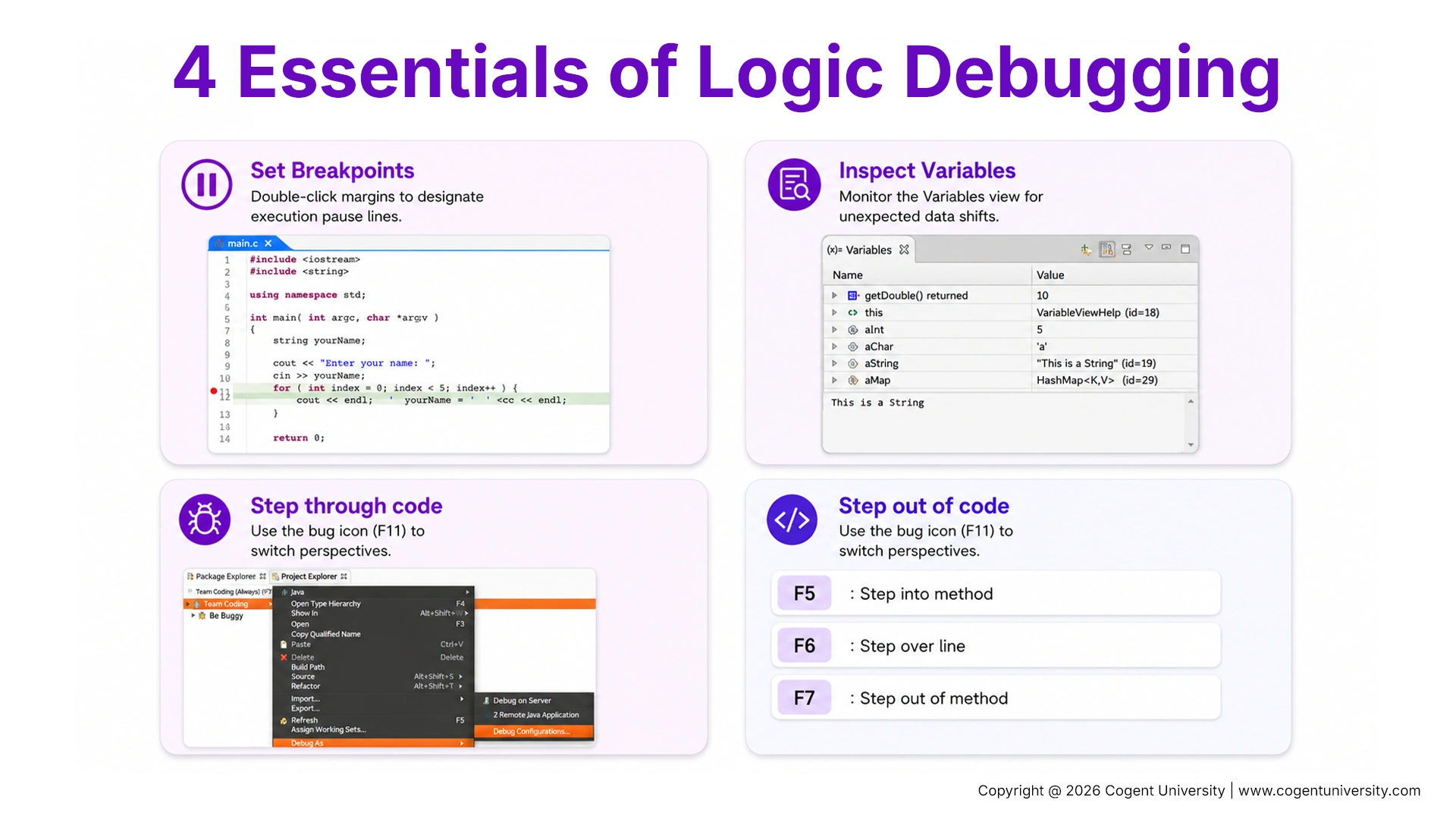
- Setting a Breakpoint: Double‑click the margin beside a line number. A blue dot marks where execution will pause.
- Running in Debug Mode: Click the bug icon or press F11. Eclipse switches to the Debug Perspective with panels for variables and execution control.
- Inspecting the Paused Program: When paused, the current line is highlighted. The Variables view shows all values at that moment, helping you spot unexpected results.
- Stepping Through Code: Use shortcuts: F6 (Step Over), F5 (Step Into), F8 (Resume). These let you move line by line or dive into methods.
Many beginner bugs are found simply by watching variable values change as you step through code. The moment a value becomes unexpected, you have identified the problem line.
Eclipse Essentials: Mistakes to Avoid and Best Practices to Follow
Every developer stumbles at first. Knowing the pitfalls and the habits that prevent them will save you hours of frustration and make your Eclipse experience smoother.
Common Mistakes
- Not installing the JDK first - Eclipse cannot compile without it.
- Downloading the wrong Eclipse package - start with Eclipse IDE for Java Developers.
- Forgetting to save before running - Eclipse runs the last saved version.
- Ignoring error messages - red underlines and the Problems tab point directly to issues.
- Installing too many plugins early - extra plugins can slow Eclipse down.
- Misunderstanding package structure - .java files outside packages will not compile.
- Confusing compile vs runtime errors - red markers are compile errors; Console errors occur at runtime.
Best Practices
- Keep your workspace organised with clear project names and consistent package conventions.
- Learn keyboard shortcuts: Ctrl+Space (completion), Ctrl+1 (Quick Fix), Ctrl+Shift+F (format code).
- Use the debugger early rather than relying solely on System.out.println().
- Update Eclipse and the JDK together when new LTS versions are released.
- Add Marketplace plugins like Git, Maven, or Spring one at a time as your needs grow.
- Back up your workspace using Git or cloud storage.
Conclusion
Eclipse IDE for Java Developers is more than just an editor, it is a complete environment that helps you write better code, understand your project’s structure, and find problems before they become serious. For beginners, it offers exactly the right combination of power and accessibility.
The concepts covered in this guide, workspaces, projects, packages, classes, the debugger, and basic Java structure, are the foundations you will return to throughout your Java career. Getting comfortable with them now, in a free and well-supported tool like Eclipse, is one of the smartest first steps you can take.
Take your time. Run your first program. Set a breakpoint. Read an error message. Each small step builds the confidence and competence that real-world Java development requires.