How to Download Eclipse for Java: Step-by-Step Installation Guide



Introduction
Starting your journey in software engineering can feel a little overwhelming, especially when you come across new tools and technical terms. If you are learning Java, one of the first important steps is setting up an Integrated Development Environment (IDE). This is the software that helps you write, test, and run your code. There are several IDEs available, but Eclipse IDE is one of the most popular choices. It is widely used in classrooms, professional training programmes, and enterprise projects because it is free, powerful, and beginner‑friendly.
This guide will show you exactly how to download Eclipse for Java, install it on Windows, macOS, or Linux, and get it ready for your very first Java program. By the end, you will have Eclipse set up and running, ready to support your learning journey.
What is Eclipse IDE and Why Do Java Developers Use It?
Before we start installing Eclipse, it helps to understand what an IDE is and why it matters for your coding journey.
An Integrated Development Environment (IDE) is software that brings together all the tools you need to write, test, and debug code in one place. Instead of typing Java code in a simple text editor like Notepad or TextEdit and then running it manually in a command terminal, an IDE makes the process easier by automating many of those steps. Think of it as a complete digital workshop designed for programmers.
Why Choose Eclipse?
Eclipse is an open-source, highly customizable platform managed by the non-profit Eclipse Foundation. It has served as a cornerstone of the global software development ecosystem for over two decades. It is a preferred Java IDE for beginners and seasoned professionals alike for several distinct reasons:
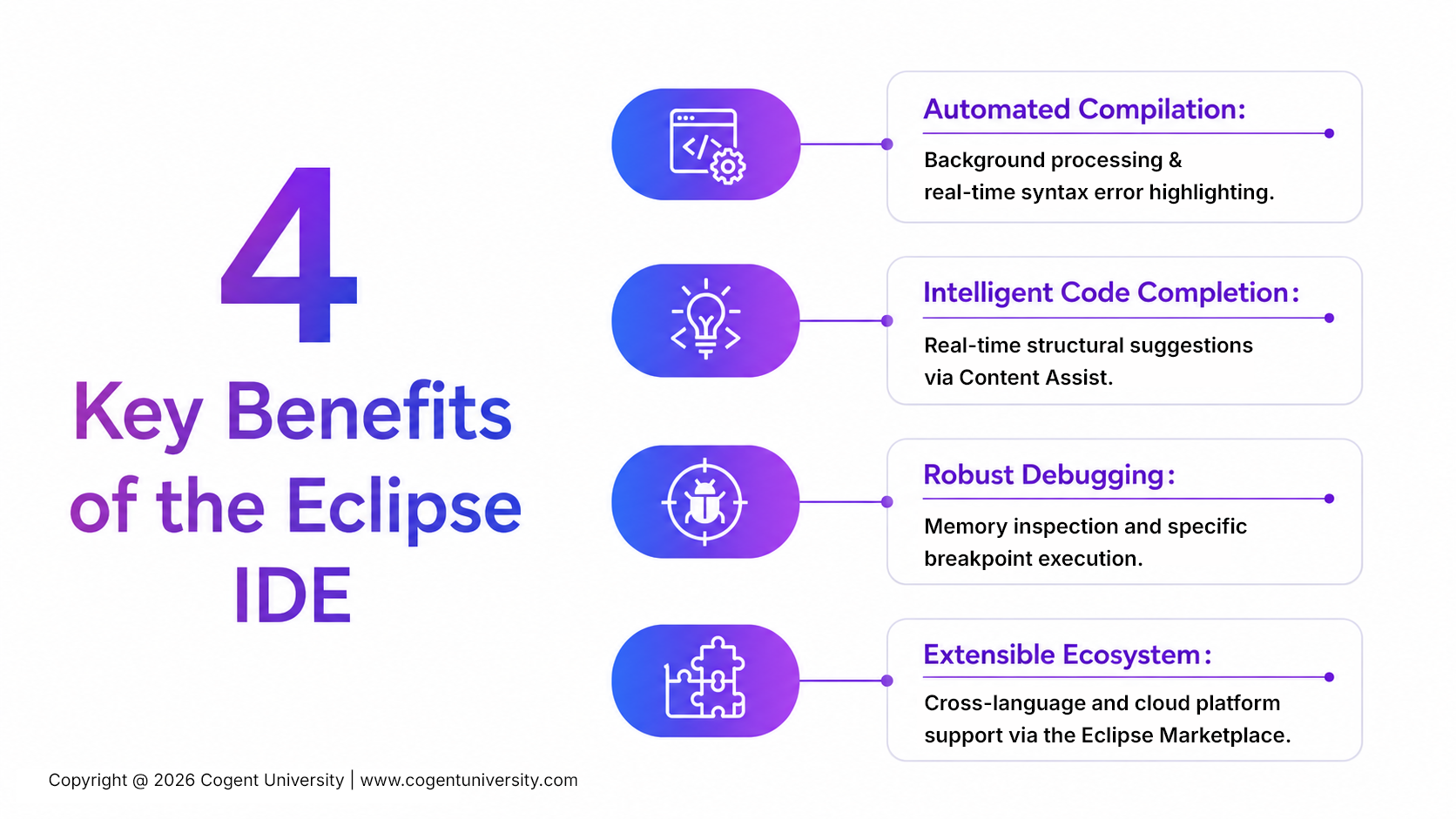
- Automated Compilation: Eclipse compiles your Java code in the background as you type. If you miss a semicolon or misspell a variable, it highlights syntax errors instantly before you even try to run the program.
- Intelligent Code Completion (Content Assist): By pressing Ctrl + Space, the platform offers real-time suggestions for methods, variables, and code structures, speeding up your development process and reducing typos.
- Robust Debugging: Eclipse features a specialized debugging perspective that allows you to pause program execution at specific lines ("breakpoints") and inspect values in memory, which makes finding logic flaws simple.
- Extensible Ecosystem: Through the Eclipse Marketplace, you can add plugins to support other languages (like Python, C++, or web technologies), cloud platforms, and build automation systems.
Learning how to use Eclipse gives you valuable experience with an industry‑grade environment. This skill is useful not only for classroom projects but also for professional software development and career growth.
Pre-Requisite: Installing the Java Development Kit (JDK)
One of the most common issues beginners face when setting up Eclipse for Java is forgetting to install the Java Development Kit (JDK). Without this, Eclipse cannot run Java programs properly.
The Relationship Between JDK and Eclipse
Eclipse is a powerful workspace for writing and managing code, but it cannot compile or execute Java on its own. It relies on the JDK to do the heavy lifting. You can think of the JDK as the engine and tools under the hood of a car, while Eclipse is the dashboard and steering wheel you use to control it.
Without the JDK, Eclipse cannot translate your human-readable Java code into the machine bytecode that computers understand.
How to Check and Install the JDK
- Go to the official Oracle Java Downloads page or choose an open-source alternative like Adoptium Eclipse Temurin.
- Download the installer compatible with your operating system:
- Windows: Look for the x64 Installer.
- macOS: Choose the x64 DMG Installer (for Intel chips) or AArch64 DMG Installer (for Apple Silicon M1/M2/M3 chips).
- Linux: Pick the appropriate .deb (Debian/Ubuntu) or .rpm (RedHat/Fedora) package.
- Run the installer file and follow the default on-screen setup prompts.
Pro-Tip: For modern versions of Eclipse, it is best to install Java SE 21 or Java SE 25. Java 25 is the latest Long-Term Support (LTS) release as of September 2025, offering the longest support runway and the broadest ecosystem compatibility. Java 21 remains a strong and widely-supported LTS choice compatible with most modern frameworks. Note that Oracle JDK 17's free public updates ended in October 2024, so new projects should target Java 21 or 25.
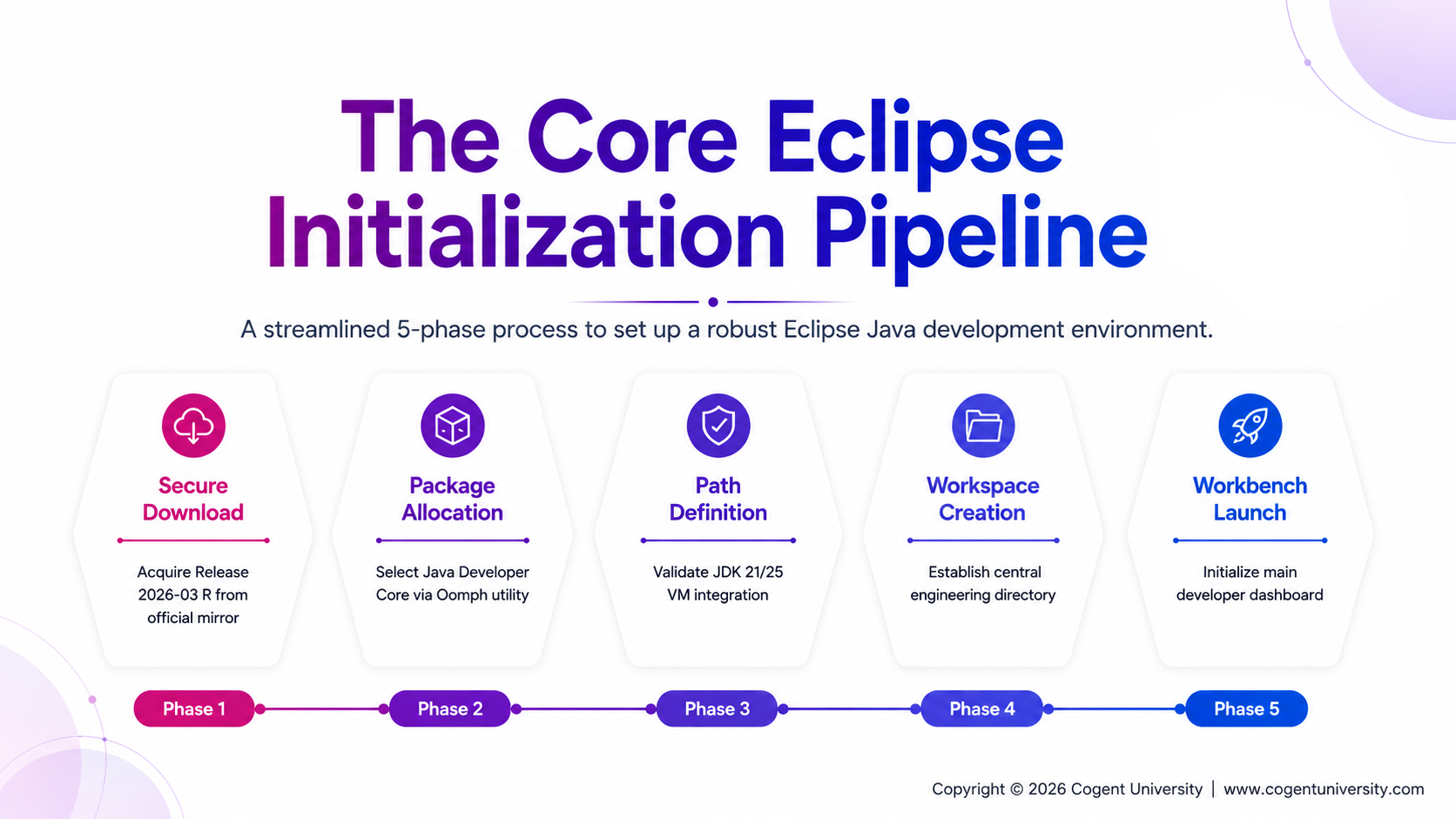
Step 1: Downloading the Official Eclipse Installer
When setting up Eclipse, it is important to download it only from the official Eclipse Foundation website. This ensures you get the latest version and avoid risks such as outdated software or unsafe files.
- Launch your web browser and navigate directly to the Eclipse Downloads Official Page.
- On the main downloads page, you will see a prominent section displaying the latest version of the platform. As of 2026, the current release is Eclipse IDE 2026-03 R. Eclipse follows a quarterly release schedule using a year-month naming convention (e.g., 2026-03 means the March 2026 release).
- Click the Download x86_64 button (or AArch64 if you are on an ARM-based system such as Apple Silicon or a compatible Windows/Linux device). The page automatically detects your operating system and hardware architecture.
- You will be redirected to a page displaying a specific local mirror download link optimized for your location. Click the final, orange Download button to save the executable installer to your local drive.
Step 2: Choosing the Correct Eclipse Package
Once the installer has finished downloading, open it from your Downloads folder. The Eclipse Installer uses a utility called Oomph, which offers several package options. For beginners, it is important to choose the right one.
You will see a list of packages. Focus on the top two:
- Eclipse IDE for Java Developers: This is the optimized package designed explicitly for core Java application development. It contains a lightweight footprint with essential tools like a Java editor, an integrated debugger, a Git version control client, and built-in build tools (Maven and Gradle). Select this option.
- Eclipse IDE for Enterprise Java and Web Developers: This expanded version includes tools for cloud development, application servers, database management, and web languages (HTML/CSS/JS). While powerful, it introduces extra background services and complexity that beginners rarely need.
Step 3: Installing Eclipse Across Operating Systems
After selecting Eclipse IDE for Java Developers, the installer updates its screen to show your installation paths. Ensure the installer correctly references the JDK you configured earlier in its Java 21+ VM or Java 25+ VM dropdown field. If it doesn't find it automatically, click the folder icon to browse to your JDK path.
Method A: Installation on Windows
- Verify your installation folder path. The default path is typically located within your user directory: C:\Users\YourName\eclipse\java-2026-03
- Keep the checkboxes for Create Start Menu Entry and Create Desktop Shortcut selected for easy access.
- Click the blue Install button.
- Review and accept the Eclipse Foundation User Agreement if a pop-up dialog appears.
- The installer will display a progress bar as it downloads the remaining packages. Once finished, the interface updates to show a green Launch button.
Method B: Installation on macOS
- Open the downloaded .dmg file from your Downloads folder.
- Drag and drop the Eclipse Installer icon directly into your Applications folder.
- Open your Applications folder and double-click the Eclipse Installer. If macOS displays a Gatekeeper security prompt stating the app was downloaded from the internet, click Open.
- Select Eclipse IDE for Java Developers from the Oomph package selection menu.
- Verify your installation path (usually /Users/YourName/eclipse/java-2026-03) and click Install.
Method C: Installation on Linux
For open-source operating environments, the Eclipse download Linux flow uses a compressed tarball archive:
- Open your terminal application and extract the downloaded .tar.gz archive to a shared directory of your choice (such as /opt/ for global use or your home directory for local use): tar -zxvf eclipse-inst-linux64.tar.gz
- Navigate into the newly extracted directory: cd eclipse-installer
- Execute the graphical installer script: ./eclipse-inst
- Follow the graphical setup wizard on your desktop, pick Eclipse IDE for Java Developers, and finalize the installation path.
Step 4: Configuring Your First Eclipse Workspace
When you launch Eclipse for the very first time, the platform opens a pop-up dialog box asking you to define a Workspace.
What is an Eclipse Workspace?
An Eclipse workspace is a dedicated folder on your hard drive where the IDE stores all your custom preferences, window layouts, plugins, and individual project source code folders. It serves as your central digital engineering warehouse.
- When the Workspace Launcher window appears, accept the default path provided or click Browse to create a custom directory in an easy-to-find spot (e.g., C:\JavaProjects on Windows or /Users/YourName/JavaProjects on Mac).
- Check the box that says "Use this as the default and do not ask again" if you want to bypass this screen automatically every time you open the software.
- Click Launch. The IDE will initialize its workbench layout and present a welcome screen. Close this welcome tab by clicking the X on the tab to view your main dashboard.
Step 5: Creating and Running a "Hello World" Project
To verify that your installed Eclipse for Java process was completely successful, let's build and run a classic "Hello World" application.
A Hello World application is the simplest program you can write. It just prints “Hello, World!” on the screen. Developers use it as a first test to confirm that their IDE and JDK are installed correctly and working together.
1. Create a New Project
- In the top-left menu bar, click File > New > Java Project.
- A configuration window will open. In the Project name field at the top, type MyFirstJavaProject (use camelCase without spaces, which is standard in Java).
- Under the Core JRE section, ensure the execution environment points to your installed Java version (e.g., JavaSE-21 or JavaSE-25).
- Look at the bottom of the window and uncheck the option to create a module-info.java file. This prevents modular access complexities while you're just learning basic syntax.
- Click Finish.
2. Create a New Java Class
- In the Package Explorer panel on the far left side of your screen, click the small arrow to expand your MyFirstJavaProject folder.
- Right-click on the src (source) folder, then select New > Class.
- A wizard window titled New Java Class will open. In the Name field, type HelloWorld. (Java classes must start with a capital letter).
- Under the section "Which method stubs would you like to create?", check the box for public static void main(String[] args). This tells Eclipse to automatically generate the required entry point method for your application.
- Click Finish.
3. Add and Run Your Code
Eclipse automatically opens your new HelloWorld.java file inside the central editor panel. Modify the file so it matches this code snippet precisely:
public class HelloWorld {
public static void main(String[] args) {
// Output text directly to the development console
System.out.println("Hello, World! Eclipse is successfully installed.");
}
}
- Save your file by pressing Ctrl + S (or Cmd + S on a Mac).
- To execute the code, click the green circular Run icon (resembling a white play arrow in a green circle) on the top toolbar. Alternatively, right-click anywhere inside the text editor pane and select Run As > Java Application.
Look at the bottom area of your screen. The Console panel will open automatically to display your output:
Hello, World! Eclipse is successfully installed.
If you see this text, your development environment is fully operational!
Troubleshooting Common Eclipse Installation Issues
Even with a detailed step-by-step guide, local system configurations can sometimes cause unexpected glitches during your Eclipse Java setup. If you run into a roadblock, do not worry. This troubleshooting guide details how to quickly diagnose and resolve the most common beginner hurdles when you install Eclipse for Java.
1. Eclipse Does Not Open
- Cause: A missing or incompatible Java runtime environment, or a corrupted initialization configuration preventing the launcher from executing.
- Fix: Verify a 64-bit JDK (version 21 or 25 recommended) is installed on your system. If it is present, navigate to your root Eclipse folder, open the "eclipse.ini" file in a text editor, and add a direct pointer to your Java executable file on a new line immediately below the "-vmargs" entry, such as: -vm C:\Program Files\Java\jdk-21\bin\javaw.exe (or jdk-25 if using Java 25).
2. "Java not detected" or "A Java Runtime Environment (JRE) must be available..."
- Cause: Eclipse cannot locate your JDK installation folder, or your operating system's environment paths are missing.
- Fix: Reinstall your JDK (Java 21 or 25) to make sure its files are complete. On Windows, open your system search bar, type "Environment Variables", and click edit. Ensure that your System Variables include a variable named JAVA_HOME pointing directly to your JDK path (e.g., C:\Program Files\Java\jdk-21 or jdk-25), and that your Path variable contains a line reading %JAVA_HOME%\bin.
3. Eclipse Launcher Freezes or Installation Gets Stuck
- Cause: Minor network dropouts while streaming packages from a crowded mirror download site, or aggressive local antivirus software blocking folder generation.
- Fix: Cancel the installer, restart your computer, right-click the Eclipse Installer executable, and choose Run as Administrator. If it continues to hang, bypass the modular installer entirely by visiting the Eclipse Packages page and downloading the standalone, pre-packaged .zip or .tar.gz archive for "Eclipse IDE for Java Developers". You can simply unzip this archive and run it without an installation wizard.
4. The Wrong Eclipse Package Was Installed
- Cause: Accidentally clicking a different option in the installer list, such as the C++ or PHP variants.
- Fix: You do not need to wipe the software. Eclipse is fully modular. Open your running IDE, go to the top menu, and select Help > Install New Software. In the "Work with" dropdown menu, select the main release site URL, expand the Java Development Tools (JDT) category, check the boxes, and click finish to add full Java support.
5. Workspace Errors or Permissions Crashes
- Cause: Eclipse is trying to write configuration files to a restricted root folder on your drive that requires administrator privileges.
- Fix: Close the application. Move or relaunch your workspace inside your standard user folder profile, such as your user Documents or Home directory, where your operating system grants full read and write permissions to standard apps.
6. Eclipse Runs Very Slowly or Lags
- Cause: The IDE is running out of allocated memory because the system limits the Java Virtual Machine's heap size.
- Fix: Navigate to your root Eclipse installation folder. Locate a text configuration initialization file named eclipse.ini. Open this file in a basic editor like Notepad or TextEdit. Find the lines near the bottom that read -Xms... (minimum memory) and -Xmx... (maximum memory). Update the maximum value to grant it more system RAM—for example, change -Xmx1024m to -Xmx2048m (2 Gigabytes). Save the file and restart Eclipse.
Conclusion
Completing your Eclipse Java setup is a foundational milestone that unlocks an industry-standard environment used by engineering teams worldwide. By configuring the JDK, establishing your workspace, and executing your first project, you have acquired the technical baseline needed to transition from basic syntax to scalable development. Mastering these ecosystem essentials directly accelerates your engineering capabilities and prepares you for real-world programming challenges.
FAQs
1. Is Eclipse IDE free for commercial use?
Yes, Eclipse IDE is completely free for personal, academic, and enterprise projects. It is open‑source under the Eclipse Public License (EPL) with no hidden costs or feature restrictions. You can even modify the source code and build proprietary applications without fees.
2. Can Eclipse be used for other languages besides Java?
Yes, Eclipse supports multiple languages through plugins. While it is primarily a Java IDE, you can add packs for C, C++, Python, PHP, JavaScript, Rust, and web technologies via the Eclipse Marketplace.
3. Do I need a new installer for updates?
No, Eclipse has a built‑in update system. Go to Help > Check for Updates to download patches and improvements. For major annual releases, Eclipse guides you through an in‑app upgrade without affecting your projects.
4. What is the difference between JRE and JDK?
The Java Runtime Environment (JRE) runs existing Java applications. The Java Development Kit (JDK) includes the JRE plus tools like the compiler (javac) and debugger, which are required for writing and building new code. If you are setting up Eclipse, installing the JDK is mandatory.
5. Can I run multiple versions of Eclipse on one computer?
Yes, you can install and run multiple versions of Eclipse IDE on the same machine. Store each version in a separate folder and assign a unique workspace to avoid conflicts between settings and plugins.
5. What Java version should I use with Eclipse in 2026?
Java 25 is the latest Long-Term Support (LTS) release (September 2025) and is the recommended choice for new projects seeking the longest support runway. Java 21 remains a solid and widely-supported option, compatible with most modern frameworks like Spring Boot 3.x, Quarkus, and Micronaut. Avoid Java 17 for new setups, as its free public Oracle updates ended in October 2024.